
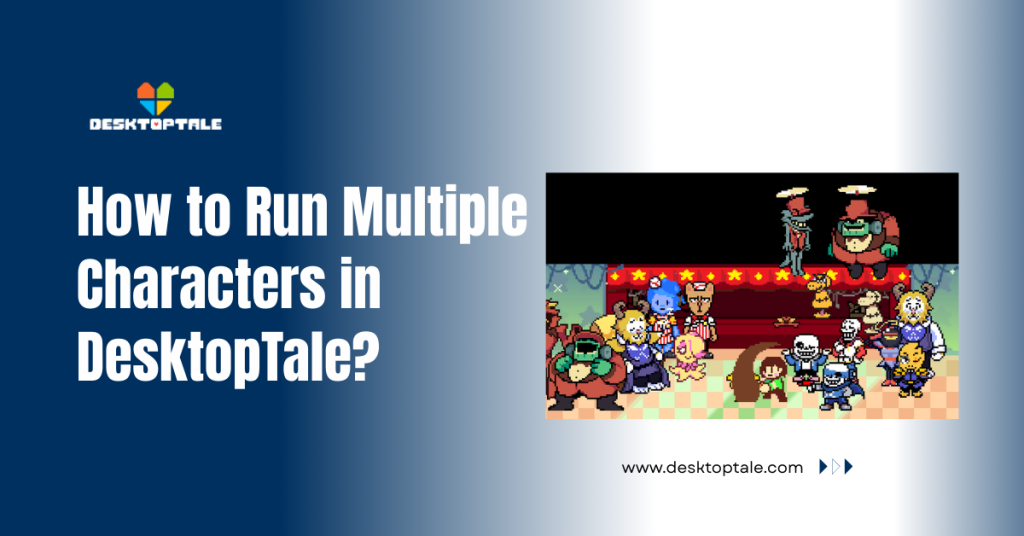
How to Run Multiple Characters in DesktopTale
Transforming your static desktop into a bustling digital kingdom is one of the coolest features of this app. While having a single companion is fun, filling your taskbar with a whole squad of pixel-art friends makes your workspace feel truly alive.
This guide will show you exactly how to break past the single-character limit and manage a diverse team of sprites without slowing down your PC. Whether you want an army of skeletons or a diverse mix of indie game icons, we have the ultimate steps to help you master the setup today!
What is the Process for Spawning Multiple DesktopTale Characters?
The process for spawning multiple characters is surprisingly simple once you know which menu buttons to click. By default, the app might show only one friend at a time to save power, but a quick toggle changes that.
You can mix and match different characters from your downloaded library or even have several versions of the exact same sprite roaming around at once. It is the perfect way to show off your favorite collection in one big, colorful display.
Navigating the Selection Menu to Enable Global Multi-Spawn
To start your army, right-click the app icon in your system tray and open the “Character Selection” window. Instead of just clicking a name, look for the small checkboxes next to each character that let you select multiple characters.
Checking these boxes tells the engine to keep the previous character active while adding a new one to the screen. This lets you build a team of different heroes who live together on your taskbar.
Using Instance Cloning for Duplicate Character Sprites
If you want five of the same characters running around, you need to use the “Clone” or “Duplicate” feature. This creates a separate instance of the same sprite that moves independently of the original.
It is a hilarious way to fill your screen with chaos without needing many different folders on your drive. You can simply right-click an active buddy and choose to make a copy of them instantly.
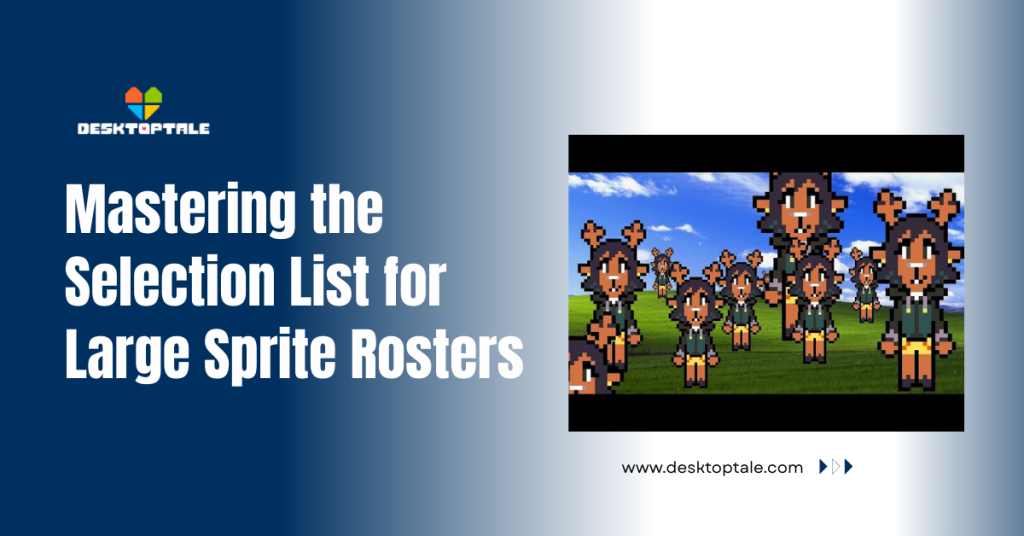
Mastering the Selection List for Large Sprite Rosters
When your collection grows to hundreds of characters, finding the right ones to spawn can become a bit of a challenge. You need to stay organized to keep your desktopTale from turning into a messy pile of pixels that gets in the way.
Using the selection list effectively is the best way to keep your favorite teams ready for action. Being smart with your menu choices ensures you can swap your friends in and out without wasting time searching for files.
- Quick Steps to Batch-Select Your Favorite Desktop Buddies
- Hold the “Ctrl” key while clicking characters in the selection menu to highlight multiple names.
- Use the “Enable All Selected” button to spawn your entire team in one single motion.
- Add your top choices to a “Favorites” list for much faster access during your next session.
- This saves you from having to hunt through the entire alphabet to find your main squad.
- Organizing Active Character Groups for Different Workflows
- Create themed folders like “Bosses” or “Heroes” within your main character directory.
- Toggle entire groups on for gaming sessions and off for focused office work to stay productive.
- Use the “Clear All” function to reset your desktop instantly if things get too crowded with sprites.
- This keeps your workspace professional when you need it and fun when you are ready to relax.
Optimizing System Resources for a Crowded Desktop Environment
Running a large squad of characters is exciting, but it can strain your computer’s memory. It is important to find the right balance so your PC stays fast while your friends roam around the screen.
If you notice your computer getting warm or fans spinning up, you might have too many active sprites. Managing your resources properly is the secret to a high-performance desktop that still looks amazing.
Balancing CPU Load When Running Large Character Squads
Each moving character takes a small amount of processing power to calculate their path and animations. If you run dozens at once, those small amounts add up and can slow down your heavy games or programs.
Try to keep your active count under ten for the best balance of fun and speed on a standard laptop. This ensures your computer stays snappy while your pixel-art team enjoys their time on your taskbar.
Reducing RAM Footprint with Lightweight Multi-Character Settings
You can save a lot of memory by choosing characters with smaller sprite sheets and fewer animation frames. Some high-definition custom characters use way more RAM than the classic 8-bit versions from the original game.
Check your settings to ensure you aren’t using unnecessary visual effects that don’t enhance the experience. Keeping the app lightweight is the best way to run for many hours with a large group of friends.
Customizing Individual Behaviors in a Multi-Character Setup
One of the best things about having a group is that they don’t all have to act the same way. You can give each character its own unique “brain” so they don’t just follow one another in a boring line.
Customizing individual behaviors makes your desktop feel like a real ecosystem with different personalities interacting. It is a great way to showcase the deep customization options this app offers to every user.
Setting Unique Movement Paths to Avoid Sprite Overlapping
Characters move randomly, so they will naturally bump into each other or overlap on your screen sometimes. You can reduce this by setting different walk speeds for each buddy in their individual config files.
If one character walks fast and another sits still, they will naturally separate and cover more of your taskbar. This creates a much more balanced and interesting look for your digital companions as they explore.
Assigning Different Interaction Toggles for Each Active Instance
You can set some characters to be “Click-Through” while others stay interactive for you to play with. This is helpful if you want most of your team to stay in the background while you focus on one favorite pet.
It allows you to “pet” or drag one character without accidentally grabbing the others who are nearby. Having these different settings makes your group feel much more natural and easier to manage during a busy day.
Troubleshooting Performance Lag in Multi-Character Sessions
If your characters start to stutter or move slowly, you might be pushing your hardware a bit too hard. Don’t worry, most performance issues can be fixed by tweaking a few settings or choosing different sprites.
We have identified the most common lag issues to help you keep your squad moving smoothly. Use this table to find the quick fix for any multi-character problems you might run into.
| Stuttering Motion | High CPU Usage | Reduce the number of active characters on screen. |
| Memory Warnings | HD Sprite Sheets | Switch to lower-resolution pixel art characters. |
| Characters Stuck | Collision Error | Right-click the app icon and choose “Reset Positions.” |
Identifying Resource-Heavy Sprites in Large Groups
Some custom characters are built with massive files that take up way more power than a simple pixel sprite should. If your app feels slow, try removing characters one by one to see which one is the “resource hog.”
Folders with large PNG files are usually the main cause of lag in a multi-character setup. Replacing them with optimized versions will make your whole team move much faster and more smoothly.
Fixing Glitchy Movement and Sprite Flickering Issues
Flickering usually occurs when the app struggles to render too many transparency layers simultaneously. You can fix this by capping the frame rate in the global settings to 30 or 60 FPS.
This gives your computer more time to render each frame correctly without getting overwhelmed by the graphics. It is a simple trick that keeps your whole squad looking crisp and clear on any monitor.
Advanced Multi-Character Management via Configuration Files
For the ultimate control, you can jump into the code and automate how your teams appear on your desktop. This is perfect for users who want a specific “crew” to show up every time they turn on their PC.
Editing the startup scripts allows you to bypass the manual selection process entirely for your main squad. It is a pro-level move that makes your custom desktop feel like a permanent part of your operating system.
Editing the Global Startup Script for Automated Team Spawning
Inside the main settings folder, you can find a list of “Active Characters” that the app loads at boot. You can manually add your favorite character names to this list so they all spawn together automatically.
This is much faster than checking boxes every morning and ensures your team is ready as soon as you are. It is the best way to maintain a consistent theme for your workspace without any extra effort.
Syncing Character Proximity Triggers for Group Interactions
Some advanced mods allow characters to react when they get close to one another on your screen. You can set up “Proximity Triggers” so your characters wave or change direction when they meet on the taskbar.
This creates a high level of interaction that makes your desktop feel like a living game world. It is a fantastic way to impress your friends and show off the true power of DesktopTale modding.
Conclusion
Running multiple characters is the ultimate way to enjoy DesktopTale and bring your workspace to life. By managing your resources and organizing your selection list, you can have a massive team of buddies without any lag. Whether you want a quiet group of explorers or a chaotic army of clones, the power is in your hands. Now that you know the secrets, go ahead and spawn your dream team and watch your desktop transform!
Frequently Asked Questions (FAQ)
Is there a limit on how many characters I can run?
There is no hard limit in the app, but your PC might slow down if you have dozens of pets active. Most users find that running 5 to 10 characters is the best balance for performance.
Can I save my team so they all spawn on restart?
Yes! Just make sure “Save Session” is checked in the main settings menu. This tells the app to remember exactly which buddies were active when you last turned off your computer.
How do I close just one character in a large group?
Simply right-click the buddy you want to remove, then select “Dismiss.” This sends them away while keeping the rest of your team active on the screen.
Why are my characters walking through each other?
Characters move randomly and don’t have “solid” bodies, so they will naturally overlap. You can reduce this by setting different walk speeds so they spread out more over time.
Will running a group drain my laptop battery faster?
Yes, more moving characters mean more CPU work, which uses more power. If you are traveling, it is a good idea to limit your team to just 2 or 3 sprites to save energy.
How do I quickly hide all characters for a meeting?
The fastest way is to use the “Hide All” hotkey or toggle visibility from the system tray icon. This makes them invisible instantly without actually closing the application.
Can I run characters from different game packs at the same time?
Absolutely! You can mix and match characters from any game or fan pack as long as they are in your “Characters” folder. There are no restrictions on blending different styles.
What do I do if the multi-spawn menu is grayed out?
This usually means you are on an outdated version of the app that doesn’t support groups. Download the latest update from the official site to unlock all the multi-character features.
Latest Posts: